Running WhatsApp Business for customer chats on a Windows desktop starts with understanding what the app actually is and why so many business owners end up needing it.
Most small business owners meet WhatsApp Business the same way: a customer chats the personal number, then another does, and suddenly order confirmations are buried between family photos. The app, published under the name WhatsApp Inc., exists to separate those two worlds. It sits in the Communication category, it registers to its own phone number, and it can live on the same handset as regular WhatsApp Messenger without either one interfering with the other.
That second number is the whole point for a lot of traders, consultants, salons and delivery operations. One line for life, one line for work.
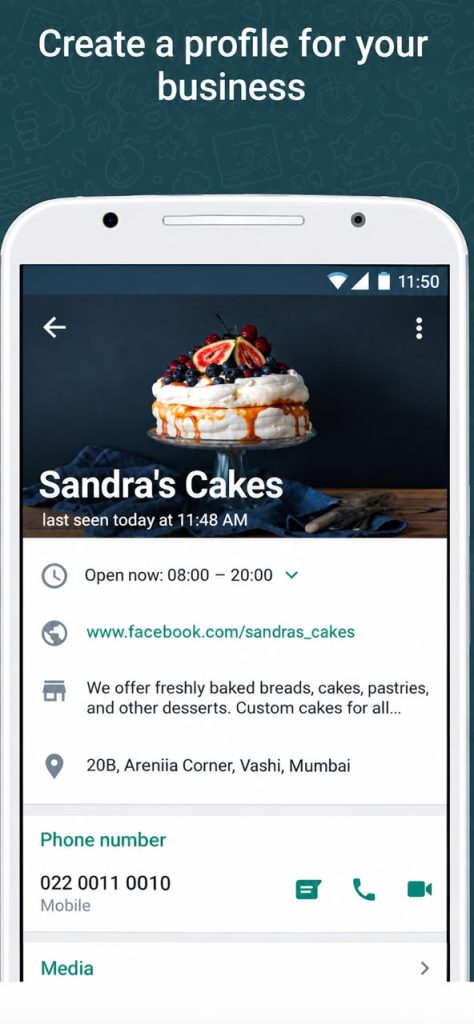
The business profile does the boring work for you.
The first thing you fill in after registration is the business profile. Address, category, hours, website, email. It sounds like admin busywork until you watch a customer tap your profile instead of asking, “Are you open today?” for the fourth time that week.
A complete profile changes the tone of the conversation. Customers treat the chat as a channel with a company behind it, not a stranger’s mobile number, and that shift in trust matters more than any feature in the app.
You might also like to read HOW DOES WHATSAPP MAKE MONEY? The Revenue Model
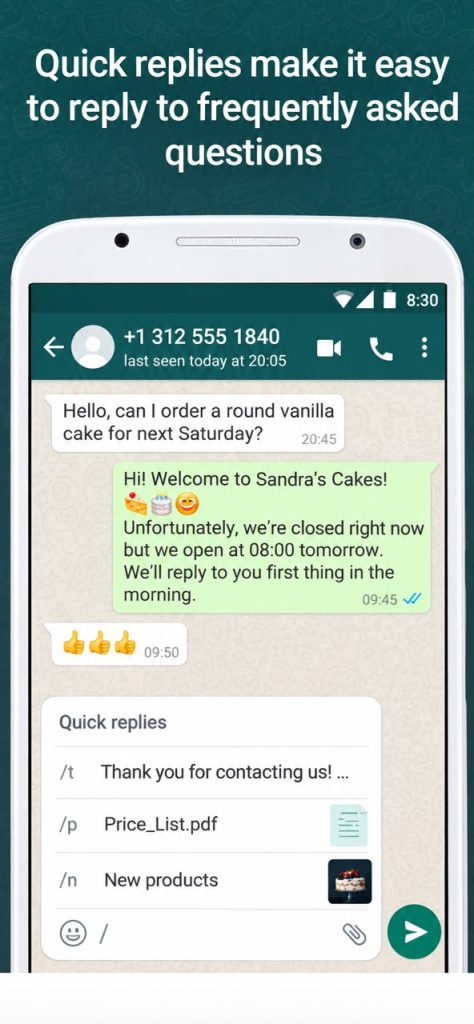
Away messages and quick replies keep the inbox honest.
Response time is the metric that quietly decides whether a WhatsApp enquiry becomes a sale. The messaging tools built into WhatsApp Business are aimed at exactly that gap.
Away messages fire when you are outside your set hours, so a 23:40 enquiry gets an acknowledgement instead of silence. Greeting messages handle the first contact. Quick replies let you store the answers you type forty times a month (delivery timelines, bank details, price lists) behind a short keyword.
Labels are the underrated one. Colour-coded tags on chats turn a flat message list into something resembling a pipeline: new enquiry, awaiting payment, shipped, repeat customer.
What WhatsApp Business feels like on a desktop screen
On a wide monitor the layout opens up. Chat list on the left, conversation on the right, profile and labels reachable without the constant back-and-forth tapping that mobile forces on you. Everything you would touch with a thumb becomes a click, and the chat search behaves like proper desktop search, which is the single biggest relief when a customer references an order from three weeks ago.
Typing is the real difference. Writing out a detailed quote, pasting a product list, correcting a price before you hit send, all of it is faster on a physical keyboard than on glass. Quick replies still work, and you trigger them the same way with the slash shortcut.
File handling is where the desktop earns its place. The moment a customer asks for an invoice PDF or a catalogue image that already sits in a folder on your work machine, attaching it straight from that folder beats emailing it to yourself first, which is usually the point where it makes sense to try WhatsApp Business for PC instead of juggling two devices.
What feels clunky: voice notes through a desktop microphone are hit and miss, and the app still thinks of itself as a phone app, so some menus open in narrow columns that waste half your screen.
Running it on Windows without tripping over the number
Windows has no native WhatsApp Business app, so the practical route is an Android environment such as BlueStacks, and two details are worth getting right before you start typing to customers.
● Register with the business number you intend to keep. Verification is tied to that number, and moving it later means re-verifying and dragging chat history along with it.
● If you already run the app on a phone with that number, expect the active session to move rather than duplicate. Decide which machine is your primary before verifying.
● Set up shared folder access between Windows and the Android environment early, so invoices, price sheets and product photos on your drive are visible to the app’s file picker.
● Fill in business hours before enabling Away messages, otherwise the auto-reply behaves in ways you did not intend.
Keep notifications visible. A desktop window that sits behind a spreadsheet all afternoon defeats the purpose of a fast-response channel.
Where the desktop switch pays off
If your WhatsApp line is where the orders land and you already spend the day at a Windows machine, the switch pays for itself fast: replying from a keyboard beats a phone keyboard, pulling an invoice PDF straight from a folder beats emailing it to yourself, and labels stop the backlog turning into forty identical-looking chats. It won’t replace the phone entirely, voice notes and instant notifications still work better there, but as a second screen for a business that lives inside its chat app, it earns its place.