If you run an Etsy shop or sell products online, you already know how much time goes into just prepping photos. A background needs to disappear before a listing photo looks clean. A product shot needs more resolution before it’ll print well on packaging or a banner. Multiply that by every new product you launch, and it adds up to a lot of repetitive image editing.
For years, the default fix has been a cloud tool: upload your photo, wait for it to process, download the result, and hope you haven’t burned through your monthly credits. It works, but it’s friction on top of an already long to-do list.
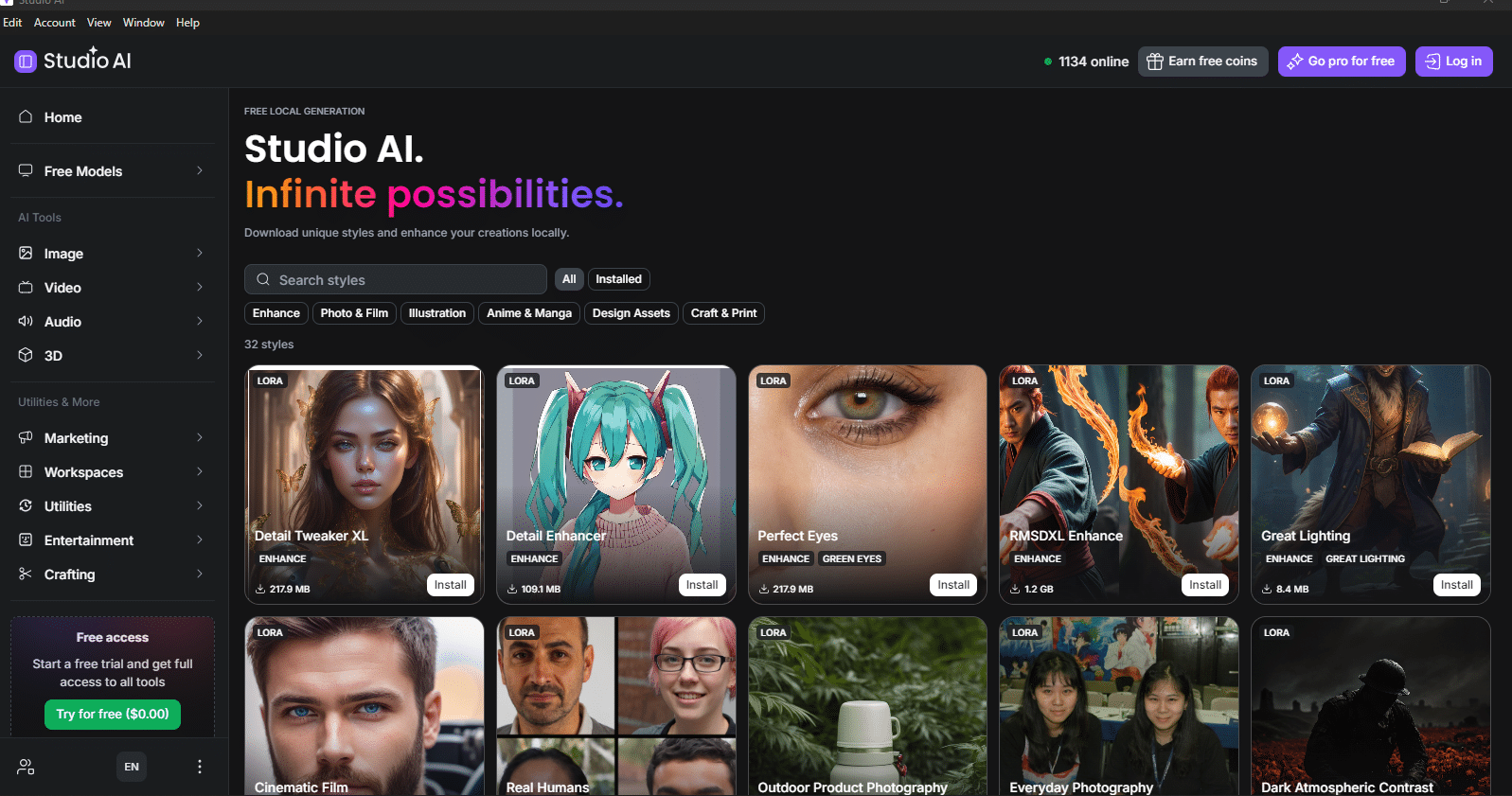
That’s the gap Creative Fabrica Studio Desktop is aiming to fill. It’s a new Windows and Mac app that brings a free local AI background remover and image upscaler directly onto your computer, so supported tools can run without uploading every file to a server first. I installed it and tested it on real product photos, and here’s what I found.
The Problem: Product Photos Are Never “Done” the First Time
If you sell on Etsy or run any kind of online shop, your raw product photos rarely come out listing-ready on the first try. Common headaches include:
- A product photo with a background that needs to disappear before it fits your shop’s clean, consistent look.
- Source images that are too small or soft to upscale cleanly for a zoomed-in listing photo, banner, or print.
- Needing a clean, isolated product cutout for a mockup, ad, or marketing graphic.
Doing this repeatedly through cloud-based tools means juggling accounts, credits, and upload times — especially painful if you’re processing photos for an entire new product line at once.
What Is Creative Fabrica Studio Desktop?
Creative Fabrica Studio Desktop is a companion app to Creative Fabrica Studio that installs on your Windows or Mac computer. Instead of routing every image through a browser-based cloud tool, it brings certain AI utilities — like background removal and upscaling — onto your own machine as part of the Studio workflow.
In practice, that means once the relevant model is installed, supported local tools can run on your computer rather than depending entirely on a server round-trip. You don’t need a paid Creative Fabrica account or a credit card to install and try it — it’s free to download and test.
Why Local AI Tools Matter for Etsy and E-Commerce Sellers
Running tools locally instead of purely in the cloud has some genuinely practical upsides for anyone managing a shop’s product photos:
- No mandatory uploads. You’re not sending every product photo to a third-party server just to remove a background.
- No credit-counting. Supported local tools aren’t metered the way many cloud background removers are, which matters if you’re processing a whole batch of listing photos at once.
- Better for privacy-conscious sellers. Keeping unreleased product photos on your own machine can matter if you’re prepping a launch ahead of time.
- Useful when you’re offline or on slow internet. You’re not stuck waiting on an upload bar between every photo.
- It’s built into the tool you’re probably already using. For anyone already working in Creative Fabrica Studio, having the background remover and upscaler live in the same place cuts out an app-switching step.
Hands-On: Removing Backgrounds from Real Product Photos
To actually test this rather than just describe it, I ran real product photos through the app.
Example 1: A clean studio product shot
Here’s the original image before any editing — a sneaker product photo on a plain studio background:
 Original product photo, straight out of the source file.
Inside Studio AI, the background remover tool is front and center — you drag your file in, pick the local “Creative Fabrica Local” model, and let it process:
 The Studio AI background remover tool, ready to accept a file for local processing.
Once processed, the app gives you a slider view so you can directly compare the original against the result:
 Before/after slider — original on the left, background removed on the right.
A closer look at the edge quality around the laces and sole — no stray background pixels or rough halos.
The result held up well on fine detail like the laces and perforations, which is usually where background removers struggle most.
Example 2: A busier, more complex background
For a tougher test, I ran a second photo through the app — a sneaker held in hand against a cluttered background full of packaging and plastic wrap, a much harder scenario than a plain studio backdrop.
 Original photo — a handheld shot with plastic packaging and clutter in the background.
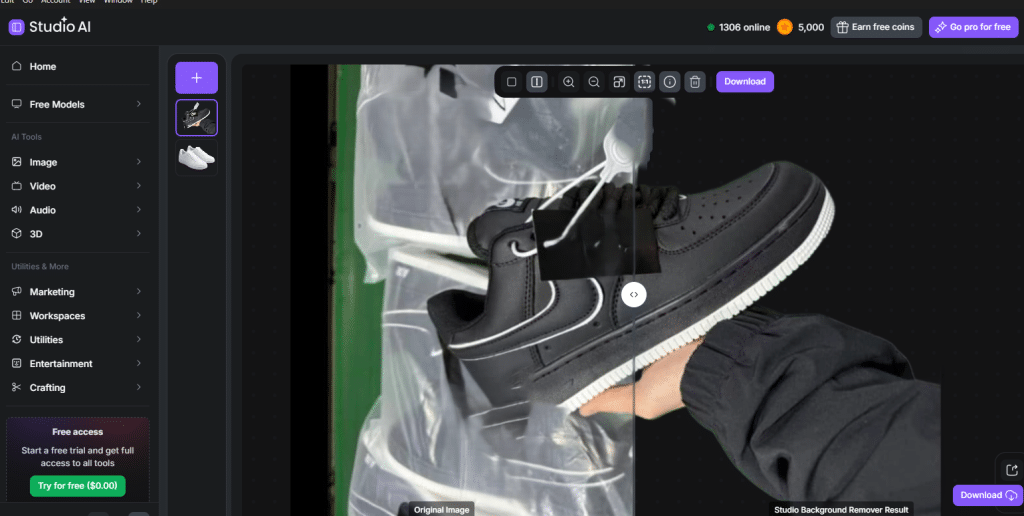
Before/after comparison — the busy background is fully removed, leaving just the product and the hand holding it.
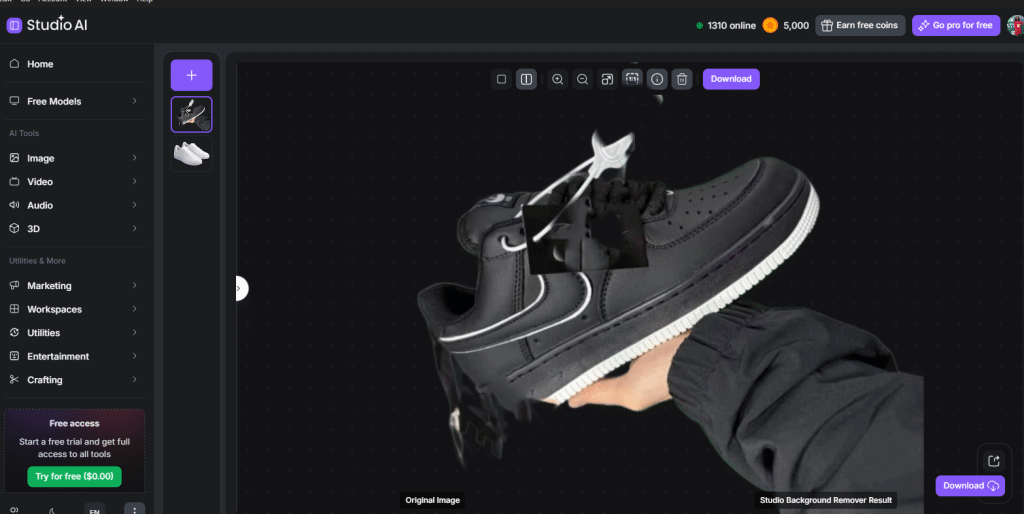
A wider view of the same comparison, showing the edge handling around the hand and sleeve.
This is the kind of image where background removers typically struggle — overlapping objects, reflective plastic, and a hand in the frame all add complexity. The tool still produced a clean cutout, correctly separating the product and hand from the background clutter behind them.
One thing worth noting from testing: using the local model required logging into a Creative Fabrica account to download it first — so “free” here means no cost and no credit card, but not necessarily zero setup.
For any seller prepping a batch of product photos for new listings, being able to run this without uploading each image to a separate cloud tool is a meaningful time-saver.
Who Is This Best For?
Creative Fabrica Studio Desktop is aimed squarely at people who manage product images regularly as part of running a shop, including:
- Etsy sellers
- E-commerce and online store owners
- Print-on-demand sellers
- Small business owners managing their own product photography
- Dropshippers prepping supplier photos for their own listings
- Social media sellers (Instagram Shops, Facebook Marketplace, TikTok Shop)
- Handmade and craft sellers
If your workflow involves repeatedly cleaning up or resizing product photos before they go live, this is squarely built for you.
Pros and Limitations
No tool is perfect, so it’s worth being upfront about both sides.
Pros:
- Free to install and use — no paid account or card required
- Available on both Windows and Mac
- Background removal and upscaling both run as supported local tools
- Fits directly into the Creative Fabrica Studio workflow instead of requiring a separate app
- Convenient for processing multiple product photos in one sitting
Limitations:
- Local performance depends on your computer’s specs, so older machines may run slower
- Models need to be downloaded before first use, which takes a little setup time
- Some features may still depend on an internet connection or a Creative Fabrica account, depending on what you’re doing
- As a new release, expect some rough edges (like a Windows install warning) that should smooth out over time
Being honest about the limitations here matters more than pretending it’s flawless — and it still holds up well against paid cloud alternatives for the core tasks it covers.
FAQ
Is Creative Fabrica Studio Desktop free?
Yes. It’s free to download and use, and no credit card is required to install it.
Does the background remover run locally? Supported local tools, including the background remover, are designed to run on your computer once the relevant model is installed, rather than relying solely on cloud processing.
Does it work on Windows? Yes, it’s available for Windows. You may see a Microsoft Defender SmartScreen warning on first install — click “More info,” then “Run anyway” to proceed.
Does it work on Mac? Yes, a Mac version is also available.
Can I use it for Etsy product photos? Yes — that’s exactly the workflow tested in this article. Cleaning up product photo backgrounds is one of the most common use cases for shop owners.
Can I use it for print-on-demand designs? Yes, the upscaler in particular is useful for bringing lower-resolution source art up to a print-friendly size.
Is it an alternative to cloud background removers? It can be, for the supported local tools — with the added benefit of not needing to upload every file.
Do I need an internet connection? Some parts of the setup (like downloading models) require internet, but supported local tools are built to run on your machine afterward. Some features may still require a connection depending on the workflow.
Are my images uploaded? For supported local tools, no — processing happens on your own computer rather than through an upload to a server.
If you regularly find yourself stripping backgrounds or upscaling photos before a listing goes live, free desktop AI tools for creators like Creative Fabrica Studio Desktop are worth installing just to see how they fit into your existing routine — it costs nothing to try.
Related Articles